Introduction
A connected home feels magical until the lights lag, the camera freezes, or the speaker refuses to respond. That is why smart home networking matters more than most people realize.
Your devices are only as good as the network behind them. A strong setup helps your cameras, thermostats, locks, TVs, speakers, and sensors work smoothly without daily frustration.
The good news is that you do not need to be a networking expert. You only need the right layout, the right hardware, and a few simple habits that keep everything stable.
What Is Smart Home Networking?
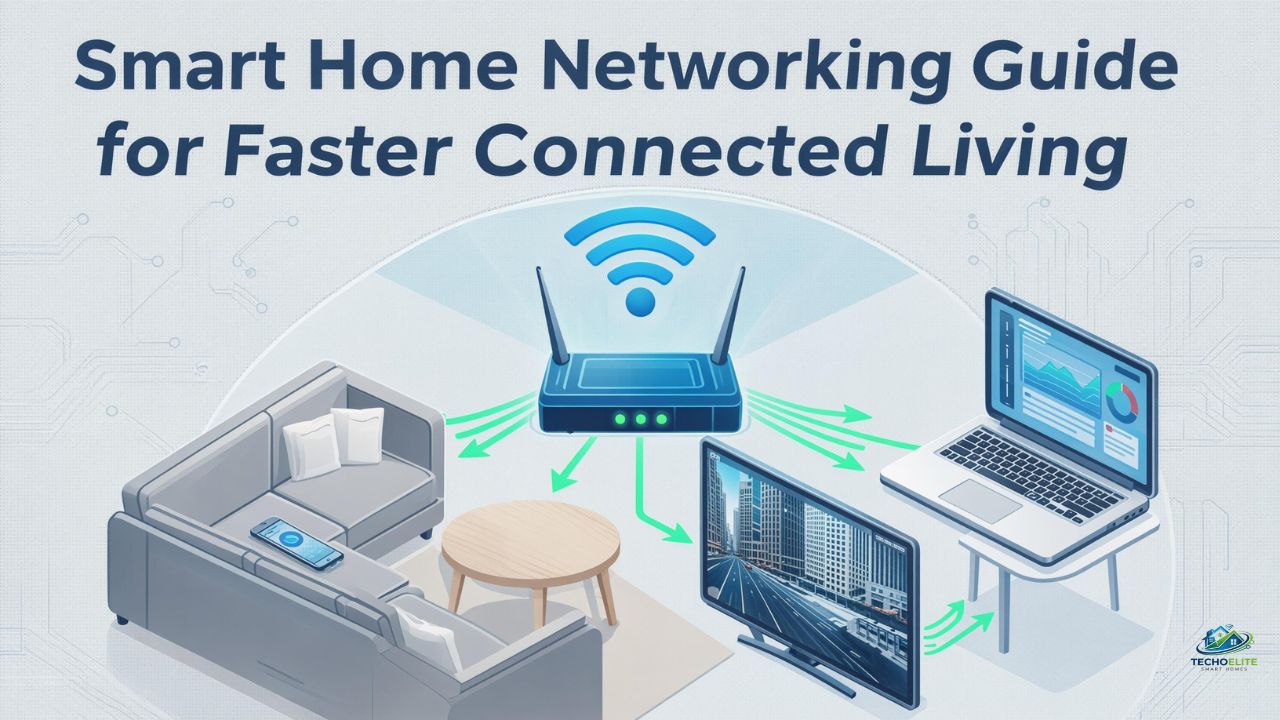
Smart home networking is the system that connects your smart devices to each other, to your internet, and sometimes to cloud services. It includes your router, Wi-Fi, Ethernet cables, mesh nodes, hubs, bridges, and wireless standards like Thread or Zigbee.
Think of it as the road system inside your home. If the roads are crowded, broken, or poorly planned, every device slows down.
A strong network supports:
- Smart TVs and streaming boxes
- Security cameras and video doorbells
- Smart lights and switches
- Voice assistants
- Thermostats
- Smart locks
- Sensors
- Appliances
- Home office devices
Why Your Smart Home Needs a Strong Network
Most smart devices use small amounts of data, but they need steady communication. A light bulb may not need speed, but it does need reliability.
Security cameras are different. They send video all day, which can overload weak Wi-Fi. Smart TVs, gaming consoles, and laptops also compete for bandwidth.
When the network is weak, you may notice:
- Delayed voice commands
- Cameras going offline
- Slow app control
- Buffering video
- Random device disconnections
- Poor performance in far rooms
- Smart lights responding late
The Main Parts of a Connected Home Network
Router
Your router manages traffic between your home and the internet. It decides how data moves between phones, cameras, TVs, speakers, and smart devices.
A basic router may work for a few devices, but a busy connected home needs stronger hardware.
Modem
The modem connects your home to your internet provider. In many homes, the modem and router are combined in one box.
For better control, many people use a separate modem and router.
Mesh Wi-Fi System
A mesh system uses multiple nodes to spread Wi-Fi across the home. This is helpful for large houses, thick walls, basements, upstairs rooms, and outdoor areas.
For smart home networking, mesh Wi-Fi is often better than one router placed in a corner.
Ethernet
Ethernet is a wired connection. It is faster and more stable than Wi-Fi.
Use Ethernet for devices that need strong performance, such as:
- Smart TVs
- Gaming consoles
- Desktop computers
- Network video recorders
- Access points
- Media servers
Smart Home Hub
A hub connects devices that do not use standard Wi-Fi. Some systems use Zigbee, Z-Wave, or Thread.
A hub can reduce Wi-Fi traffic and make devices respond faster.
Wi-Fi Bands Explained in Simple Words
2.4 GHz
The 2.4 GHz band has longer range and works better through walls. Many smart bulbs, plugs, sensors, and older devices use it.
The downside is congestion. Microwaves, baby monitors, Bluetooth devices, and nearby routers can interfere with it.
5 GHz
The 5 GHz band is faster and less crowded. It is good for phones, laptops, cameras, and streaming devices near the router.
Its range is shorter than 2.4 GHz.
6 GHz
The 6 GHz band is available on Wi-Fi 6E and Wi-Fi 7 devices. It offers faster speeds and less interference, but it has shorter range.
It works best for high-performance devices close to the router or mesh node.
![Infographic showing 2.4 GHz, 5 GHz, and 6 GHz Wi-Fi bands]
Smart Home Networking Setup for Beginners
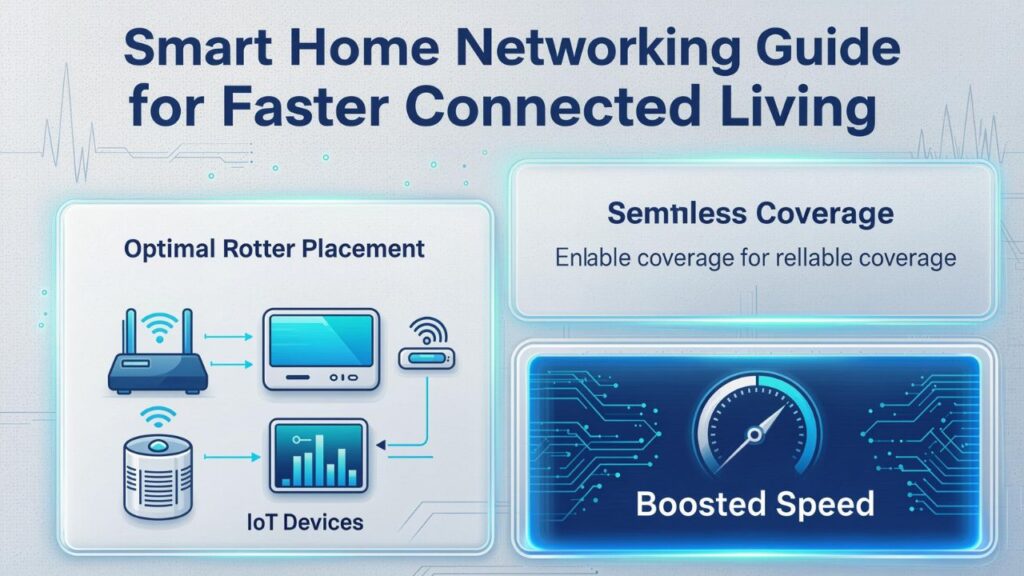
Start with placement. Put your router or main mesh node near the center of your home, not hidden inside a cabinet.
Then connect your high-demand devices by Ethernet when possible. This keeps Wi-Fi clear for phones, sensors, lights, and mobile devices.
A practical setup may look like this:
- Main router near the center of the home
- Mesh node upstairs
- Mesh node near outdoor cameras
- Ethernet for TV, console, and office computer
- Separate guest network for visitors
- Strong password for the main network
- Regular router updates
Best Devices to Keep on Wi-Fi
Wi-Fi is fine for many smart devices, especially low-power products. Smart plugs, bulbs, thermostats, and speakers usually work well on Wi-Fi.
Use Wi-Fi for:
- Voice assistants
- Smart plugs
- Smart bulbs
- Robot vacuums
- Thermostats
- Mobile devices
- Tablets
- Smart displays
For the best smart home networking experience, avoid connecting every heavy device wirelessly.
Best Devices to Wire with Ethernet
Ethernet gives your important devices a stable connection. It also reduces pressure on your Wi-Fi.
Use Ethernet for:
- Smart TVs
- Streaming boxes
- Gaming consoles
- Desktop computers
- Security camera recorders
- Home office workstations
- Mesh backhaul connections
A wired mesh backhaul is especially helpful. It allows mesh nodes to talk to each other through cable instead of wireless signals.
Understanding Matter, Thread, Zigbee, and Z-Wave
Matter
Matter is a smart home standard designed to help devices work across major platforms like Apple Home, Google Home, Amazon Alexa, and Samsung SmartThings. It is based on IP networking and can work over Wi-Fi, Ethernet, and Thread.
Thread
Thread is a low-power mesh network made for smart home devices. It is useful for sensors, locks, bulbs, and small devices that need fast local response.
Zigbee
Zigbee is common in smart bulbs, sensors, and switches. Many Philips Hue-style systems use Zigbee with a hub.
Z-Wave
Z-Wave is often used for locks, sensors, switches, and security devices. It usually needs a dedicated hub.
The best choice depends on your devices. Wi-Fi is simple, Thread is modern and efficient, Zigbee is widely used, and Z-Wave remains popular in many security-focused setups.
How to Plan Smart Home Networking Room by Room
Living Room
The living room usually has heavy devices. A smart TV, streaming box, gaming console, speakers, and voice assistant can use a lot of bandwidth.
Use Ethernet for the TV and console if possible.
Kitchen
Smart displays, speakers, appliances, and plugs are common here. Keep the Wi-Fi signal strong, but avoid placing routers near microwaves.
Bedrooms
Bedrooms need steady Wi-Fi for phones, lamps, speakers, and thermostats. A mesh node in the hallway often works better than one hidden behind furniture.
Home Office
This room needs the strongest connection. Use Ethernet for your main work computer when possible.
Outdoor Areas
Outdoor cameras, smart lights, and doorbells need good coverage near doors, garages, and patios. A mesh node near the outside wall can help.
Common Network Mistakes to Avoid
Many smart home problems come from small setup mistakes.
Avoid these:
- Placing the router inside a cabinet
- Using one weak router for a large home
- Keeping old firmware
- Using the same weak password for years
- Connecting too many cameras over weak Wi-Fi
- Ignoring dead zones
- Buying devices without checking compatibility
- Mixing too many apps and hubs without a plan
Good smart home networking is not about buying the most expensive router. It is about building a clean and balanced system.
How to Improve Speed and Reliability
Start by restarting your modem and router. Then test Wi-Fi strength in each room.
Move mesh nodes into open areas. Keep them away from metal objects, thick walls, large appliances, and closed cabinets.
You can also improve performance by:
- Updating router firmware
- Removing unused devices
- Using Ethernet for heavy devices
- Creating a separate guest network
- Replacing old routers
- Using mesh nodes in weak areas
- Choosing devices that support modern standards
Smart Home Security Tips
A smart home network also needs protection. Every connected device can become a weak point if ignored.
Use these habits:
- Change default router passwords
- Use strong Wi-Fi encryption
- Keep device firmware updated
- Turn off features you do not use
- Use a guest network for visitors
- Remove old devices from your account
- Buy from trusted brands
- Avoid unknown apps and cheap devices with poor support
Security is a major part of smart home networking because your network controls cameras, locks, alarms, and private data.
Should You Create a Separate Network for Smart Devices?
A separate network can be useful. Many routers allow a guest network or IoT network.
This keeps smart devices away from your personal laptops and phones. It also makes troubleshooting easier.
A separate smart device network is helpful when:
- You have many smart products
- You use security cameras
- You want better privacy
- Guests often connect to your Wi-Fi
- You manage devices for a rental or office
For a small home, one secure network may be enough. For a larger setup, separation is cleaner.
Choosing the Right Router or Mesh System
Look for a router that can handle many devices. Do not only look at speed numbers on the box.
Check for:
- Wi-Fi 6, Wi-Fi 6E, or Wi-Fi 7 support
- Good coverage for your home size
- Easy app controls
- Security updates
- Guest network support
- Parental controls if needed
- Ethernet ports
- Mesh expansion options
For smart home networking, stability matters more than headline speed.
When to Upgrade Your Network
You may need an upgrade if your devices keep dropping offline or your Wi-Fi fails in certain rooms.
Upgrade when:
- Your router is more than five years old
- You added several cameras
- Your home has dead zones
- Video calls freeze often
- Smart devices respond slowly
- Your internet plan is faster than your router can handle
- You need better security controls
A good upgrade can make an old smart home feel new again.
Professional Installation vs DIY Setup
DIY setup works well for apartments, small homes, and simple systems. Most mesh kits are easy to install through an app.
Professional installation makes sense when you have:
- A large home
- Outdoor cameras
- Multiple floors
- Thick walls
- Wired access points
- Home theater systems
- Security systems
- Business-grade network needs
A professional can also test signal strength and reduce future problems.
Troubleshooting Smart Home Network Problems
Devices Keep Disconnecting
Check signal strength first. Move the router or mesh node closer. Also update firmware and remove old saved networks.
Camera Video Is Choppy
Use Ethernet if possible. If not, move the camera closer to a mesh node or reduce video quality.
Smart Lights Respond Slowly
Check the hub location. If the lights use Wi-Fi, make sure the 2.4 GHz band is stable.
Voice Assistant Does Not Respond
Restart the device, check internet connection, and confirm it is on the correct network.
New Device Will Not Pair
Many smart devices need 2.4 GHz during setup. Move your phone closer to the router and check app permissions.
Future of Smart Home Networking
The connected home is moving toward faster Wi-Fi, better local control, and easier device compatibility.
Wi-Fi 7 will help high-bandwidth devices. Matter and Thread will make setup simpler across brands. More devices will work locally, which can reduce delays and improve privacy.
Still, the basics will stay the same. A strong router, smart placement, clean wiring, and secure settings will always matter.
FAQ
What is smart home networking?
Smart home networking is the way your smart devices connect through Wi-Fi, Ethernet, hubs, and wireless standards so they can work together reliably.
Do smart home devices slow down Wi-Fi?
Yes, they can. Most small devices use little data, but cameras, TVs, and speakers can affect performance if your router is weak.
Is mesh Wi-Fi good for smart homes?
Yes. Mesh Wi-Fi is helpful for larger homes, multi-floor layouts, and areas with weak signal.
Should smart devices be on a separate network?
It is a good idea for larger homes or security-focused setups. A separate IoT or guest network can improve privacy and organization.
Is Ethernet better than Wi-Fi for smart devices?
Ethernet is better for high-demand devices like TVs, gaming consoles, cameras, and desktop computers.
What Wi-Fi band is best for smart devices?
Many smart devices use 2.4 GHz because it has better range. Faster devices near the router may work better on 5 GHz or 6 GHz.
Do I need a hub for my smart home?
Not always. Wi-Fi devices do not always need a hub, but Zigbee, Z-Wave, and some Thread setups may need one.
Why do my smart devices keep going offline?
Weak signal, router overload, old firmware, interference, or poor device placement are common causes.
Conclusion
A smart home should feel smooth, not stressful. When your network is planned well, devices respond faster, cameras stay online, and daily routines feel easier.
Start with the basics: strong router placement, smart use of mesh Wi-Fi, Ethernet for heavy devices, secure passwords, and regular updates.
With the right smart home networking setup, your connected home becomes more reliable, safer, and easier to enjoy every day.